
Updated: October 26, 2026
Filming screens, LED walls and signage in Miami: flicker, moire and shutter settings
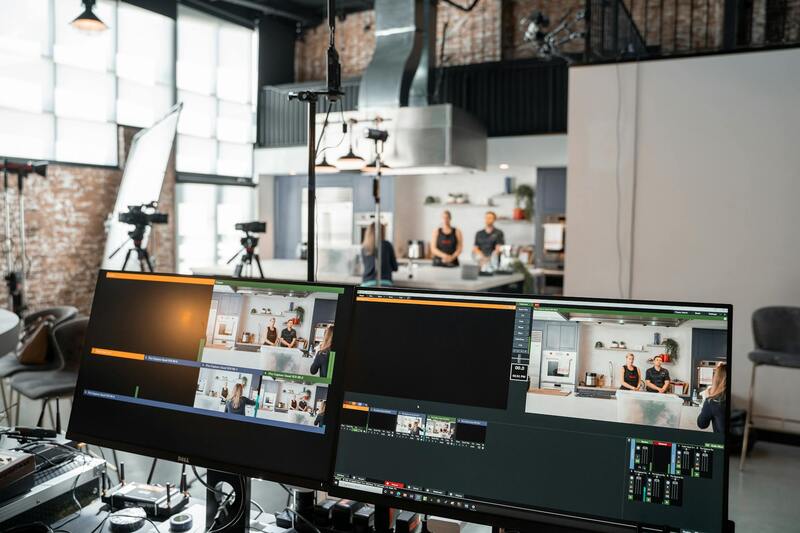
Screens are everywhere in modern video. A founder demonstrates the app on a phone. A conference keynote plays in front of a giant LED wall at a Miami Beach venue. A brand film opens on the billboards and neon of Brickell at night. A restaurant spot features a digital menu board. Each of these can look perfect to the eye and terrible on camera: rolling bars across a laptop screen, a shimmering rainbow pattern on a TV, a video wall that pulses or shows black lines, a sign that flickers in slow motion. None of this is bad luck. It comes from how screens and lights refresh and from how camera sensors read an image, and almost all of it can be prevented with the right settings and a quick test before rolling. This guide covers the causes and the fixes that a camera team uses on Miami shoots.
Why screens misbehave on camera
There are three separate problems, and they are often confused:
- Flicker and banding. Many light sources and screens do not emit steady light. They pulse with the mains power or with their own refresh or dimming circuits. If the camera's shutter does not line up with those pulses, brightness changes from frame to frame, or dark bands roll across the image.
- Moire. A screen is a fine grid of pixels, and a camera sensor is also a grid. When the two grids interfere, you get wavy, shimmering patterns that were never there in reality.
- Exposure and color mismatch. Screens are bright and often cool in color, so they can blow out or look blue next to a warmer, darker scene.
Each needs a different fix, so start by identifying which one you are seeing on the monitor.
Shutter speed and mains frequency
In the United States the power grid runs at 60 Hz, and many lights and screens that flicker do so at 120 pulses per second. Shutter speeds that divide evenly into that rhythm, such as 1/60 or 1/120, usually give clean results. At 24 frames per second, the classic 180-degree shutter is 1/48, which can show flicker under some sources. Switching to a 144-degree shutter, which equals 1/60 at 24 fps, often removes it with almost no visible change to motion blur. Our guide to frame rates for Miami video covers how frame rate and shutter work together.
Slow motion makes this harder. At high frame rates the shutter is very short, and even good lights may show brightness changes between frames. If you plan slow-motion shots near screens or practical lights, test them on location before the real take.
Phones, laptops and TVs
Consumer screens add their own problem: many dim their backlight by switching it on and off very fast, a method called pulse-width modulation. On camera this can create bands even when the shutter matches the mains frequency. Practical fixes:
- Set the screen to full brightness, which on many devices reduces or stops the pulsing, and control exposure with the camera and ND instead.
- Use the camera's fine shutter adjustment, often called clear scan or synchro scan, to tune the shutter until the bands disappear.
- Turn off auto-brightness, night modes and color filters on the device so the screen does not change during the take.
- For close-ups where the content is still being finalized, shoot the screen with a flat color or tracking markers and plan a replacement in post.
Moire on phone and laptop screens usually appears in medium and close shots. Change the camera distance or angle slightly, let focus fall a touch off the screen surface if the shot allows it, or open the aperture for a shallower depth of field. A lens change can also help, since some lenses resolve fine detail more sharply than others. Check on a large monitor, because moire is often invisible on a small camera screen and obvious on a laptop in the edit.
LED walls and video screens at events
Many Miami conference venues and hotel ballrooms use LED walls behind the stage. These are built from panels that refresh at a rate set by their processor, and the quality varies a lot between rental systems. On camera, a low refresh rate shows as black lines, scan bands or flickering, especially at high shutter speeds. What to do:
| Issue | Likely cause | Fix |
|---|---|---|
| Black horizontal lines | Panel scan rate out of step with the camera shutter | Adjust shutter in small steps, ask the LED tech about refresh settings |
| Pulsing brightness | Mismatch between wall refresh and camera frame rate | Match frame rate to the wall, or ask the tech to set a camera-friendly refresh |
| Moire on the wall in wide shots | Pixel grid interference with the sensor | Change distance, keep the wall slightly soft, reduce sharpening in camera |
| Wall blown out, speaker dark | Screen brightness far above stage lighting | Ask for the wall brightness to come down, bring up the speaker's key |
The LED technician is your best friend. Talk to them during load-in, before doors open, and test your camera settings against actual content, not a black standby screen. On multi-camera coverage, set every camera the same way; our guide to multi-camera production setups covers matching cameras.
Signage, neon and billboards
Miami nights are full of light: neon on Ocean Drive, LED billboards along Biscayne Boulevard, lit towers in Brickell. Classic neon usually films well. LED signs and billboards often flicker at unusual rates that do not match the mains frequency, so the fix that worked on the laptop may not work on the billboard across the street. Watch the monitor with the camera at your planned settings, and if a sign flickers, adjust the shutter in small steps or change the framing. Our article on shooting Miami at night covers exposure for these scenes.
Exposure and color for screens
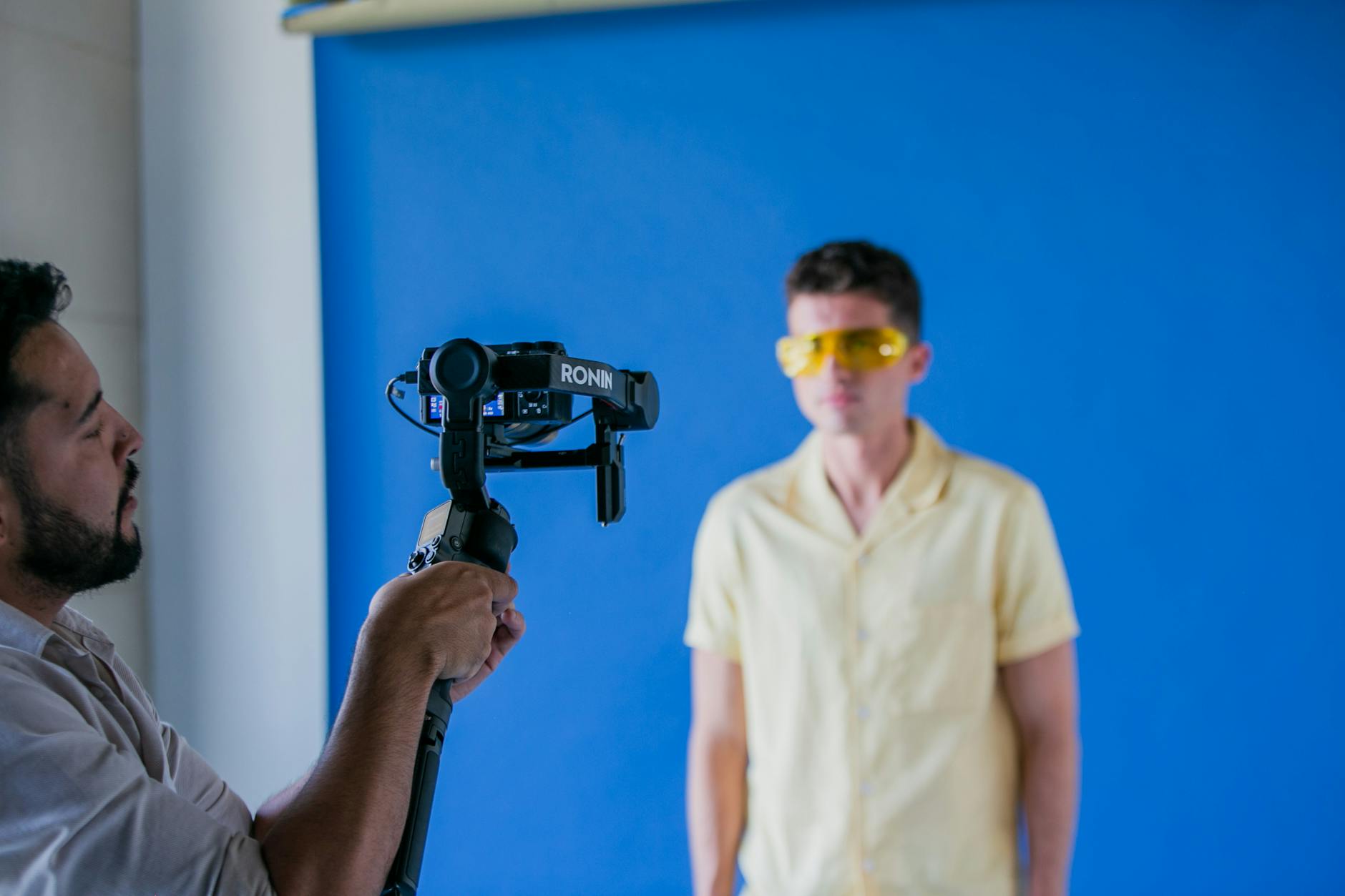
A screen is a light source. If you expose for the face in front of it, the screen may clip; if you expose for the screen, the face falls into shadow. Bring the screen brightness down when you can, add light to the person, or plan to replace the screen content in post. Screens are usually cooler than practical lights, so check white balance and decide whether you want to match them or keep the contrast. Shooting in log gives more room to balance screen and skin later, as explained in our log and monitoring guide.
How we handle screens on our shoots
Our camera teams test every screen, wall and sign in the frame before the first take. We bring cameras with fine shutter control, talk to the LED technicians at venues during load-in, and set up the devices on product shoots so the content is steady and bright. When a shot needs a clean replacement, we film tracking markers and plan it with the editor in advance. If your next Miami project involves an app demo, a stage with an LED wall or a night scene full of signage, send us the details through the contact page and we will recommend the right camera setup and crew. You can read more about our team on the about page.